
Your download has started
Open Epilod.Party.Setup.exe once it finishes downloading. If Windows shows a blue "Windows protected your PC" alert, follow the two-click steps below to install normally.
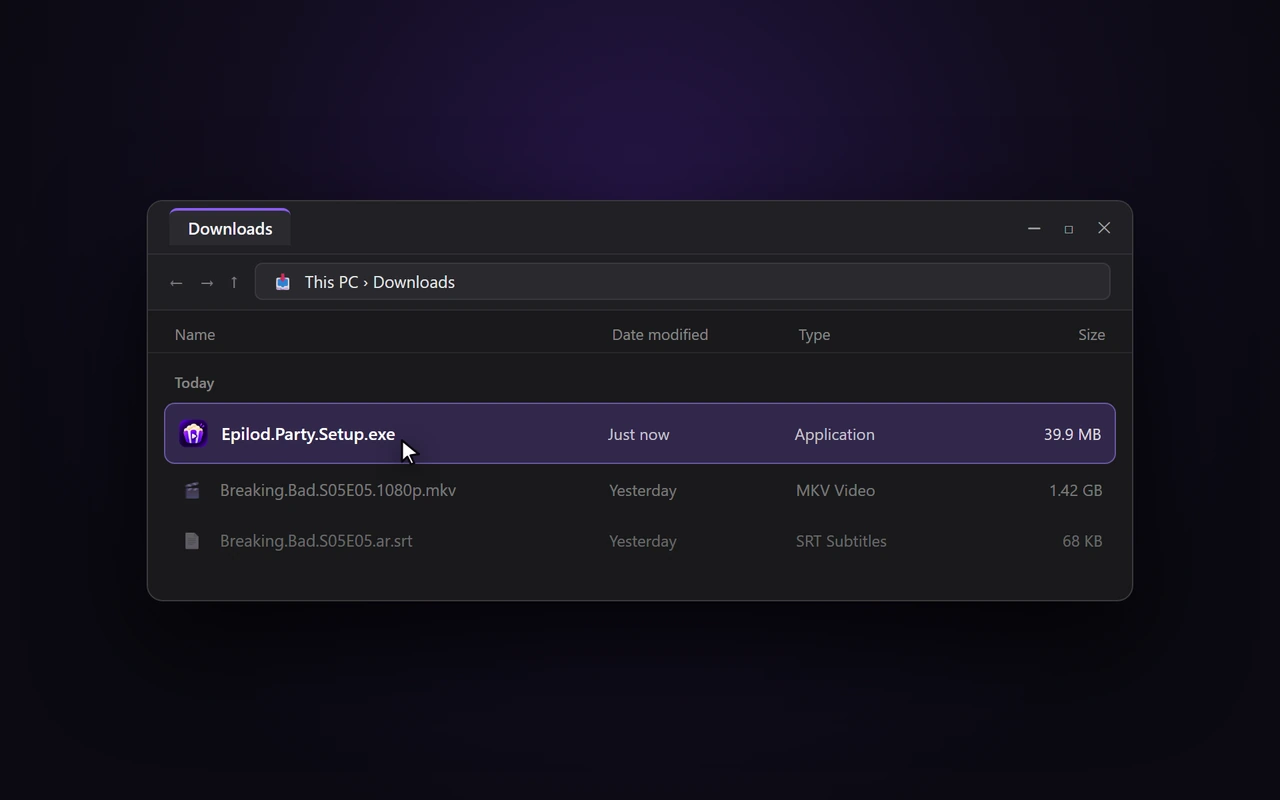
1. Open Epilod.Party.Setup.exe from Downloads (Ctrl + J)
Press Ctrl + J in your browser or open This PC › Downloads in Windows Explorer and double-click Epilod.Party.Setup.exe to start the installer.
About the blue screen
Why Windows shows this prompt and how to verify the installer yourself.
Why does Windows show "Windows protected your PC"?
Microsoft Defender SmartScreen displays that blue warning on unsigned open-source Windows builds until thousands of installs build reputation or the publisher pays for an EV code-signing certificate. Clicking More info and then Run anyway is the standard Windows step to run the setup normally.
Is Epilod.Party.Setup.exe open source and safe to inspect?
Yes — 100% open source under GPL-3.0. You can read the Rust, Tauri, and React source code or download directly from GitHub Releases and inspect the installer hash at any time.
Do I need to install mpv or FFmpeg separately?
No. Once you click Install in the setup window, Epilod Party unpacks everything it needs locally — including mpv and FFmpeg — and creates your Start Menu shortcut automatically.
My browser didn't start the download automatically
Click Download Again at the top of this page or grab the installer directly from the latest GitHub release. If Chrome or Edge asks whether to keep Epilod.Party.Setup.exe, press Ctrl + J and choose Keep.