
How Epilod Party Works
Everyone opens the same show or movie downloaded on their own Windows PC. Connect with a 6-digit pass code and stay frame-locked together — with zero file uploads, full original quality, and no accounts.
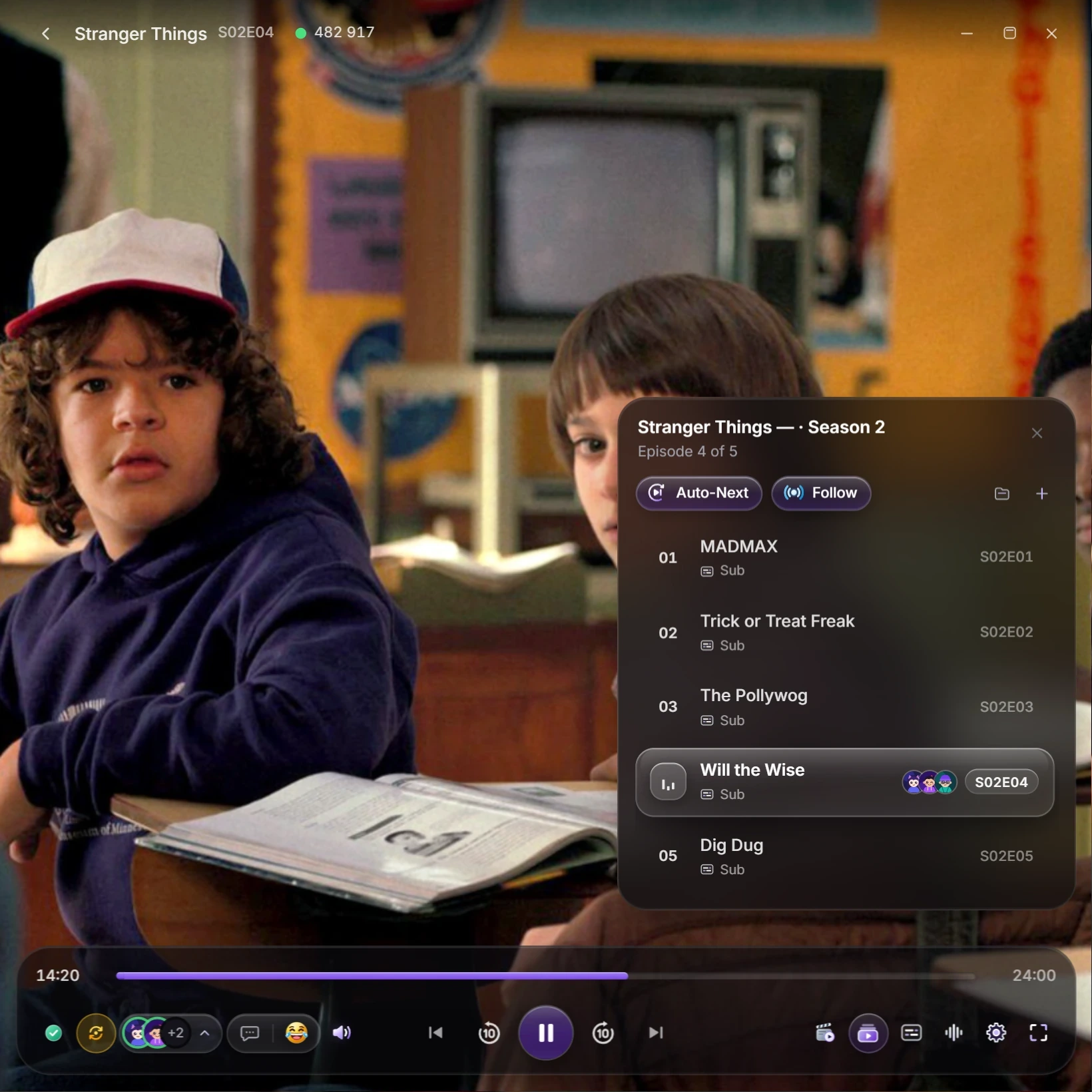
1. Everyone opens their own local show or movie
All friends in the watch party must have the movie or episode downloaded on their own PC before starting. Epilod Party plays straight from your Windows drive via embedded mpv (.mkv, .mp4, .avi) — drop an entire season folder once to load every episode with Auto-Next and Follow Party Episode.
Rules & common questions
Straight answers before you start your first watch room.
Do all viewers need to have the show or movie downloaded?
Yes — everyone must already have their own local copy saved on Windows. Epilod Party never uploads, stores, or streams video files across the internet. Your desktop mpv player renders the file straight from your local drive at full native quality, while Syncplay and peer connections only exchange timestamps, room status, chat, and reactions.
Do our video filenames or formats have to be identical?
No. One viewer can load a .mkv encode while another loads an .mp4 with a different filename. As long as both files share the same cut and runtime (no extra extended scenes or trimmed intros), playback stays locked to the exact frame.
Do friends need to sign up or log in to join a room?
No accounts or logins exist. Set a display name and avatar inside Epilod Party, click Host a New Room, and share your 6-digit pass code (with optional password). Rooms connect over STARTTLS using public Syncplay servers or any custom Syncplay endpoint.
Can the host control pausing, seeking, and episode changes?
Yes. Switch on Host Control when starting a room if you only want yourself (and appointed admins) pausing, seeking forward, or advancing the party via Follow Party Episode. Leave it off if everyone should be free to control playback.
Can everyone use their own subtitles and audio tracks?
Yes — subtitles and audio tracks stay private per screen. Load any local .srt or .ass file (auto-decoded for Arabic Windows-1256, UTF-8, and more), press S / A to switch tracks, and run built-in speech-envelope Auto-Sync if timing differs slightly from your video release.